Account email change
Request a new sign-in email and complete the account provider’s confirmation flow.
- Free
- Silver
- Gold
Understand Account email change.
Request a new sign-in email and complete the account provider’s confirmation flow.
Try it in the app
- Sign in to your eligible account with its confirmed current email, then open Settings → Account email.
- Enter a different New email address and choose Send confirmation links.
- Check the current and new inboxes and follow the required confirmations. Request acceptance alone does not mean the address has changed. If the result is unconfirmed, check the inboxes before retrying.
Example: Sarah requests a new sign-in email. She follows the confirmations rather than treating the request acknowledgement as a completed change.
- Participation is voluntary. New optional collection or sharing for an under-13 member needs their actual parent’s authorization covering those purposes; an administrator role alone is not parental authority. Existing privacy rights and ordinary sharing choices remain separate.
- Private by design: this changes the Kinfara sign-in email through its configured account provider. It does not change Apple, Google or payment-provider accounts. The deployed provider must require confirmation and secure email change; no inbox-delivery guarantee is made.
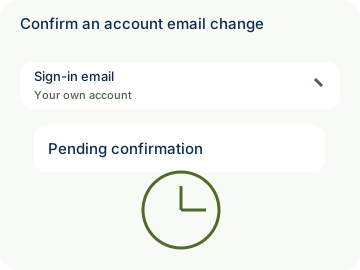

How to use Account email change
Illustrative walkthrough. Fictional examples, not a live app, real locations or a safety test. These controls never change your account, contact anyone, send an SOS, request location or make a network request.
- Where to open it
- Settings → Account email
- What else is required
- Use an eligible signed-in account with a confirmed current email. Enter New email address and choose Send confirmation links, then complete the provider’s required inbox confirmations.
Request from the right account
Sarah reviews the current signed-in account and enters a different valid New email address. This does not change Apple, Google or payment-provider accounts.
Account scope: Kinfara sign-in email
Send confirmation links deliberately
Sarah chooses Send confirmation links. Request acceptance is a pending state; it does not prove inbox delivery or a completed email change.
Request status: Pending confirmation
Complete the inbox steps
Sarah checks the current and new inboxes and follows the required confirmation links. If the request is unconfirmed, she checks the inboxes before retrying. Secure provider configuration is required.
Completion: Confirm separately
Stage 1 of 3. Paused.
Reduced motion is enabled. Use the stage buttons to explore at your own pace.